Cutting & Merging Parts
In Assembly mode you can reshape how your model is divided into moving parts: merge parts into one, or cut a part into two. Cubie adds or removes the joints automatically.
Merge Parts
Combine two or more parts into a single piece.
- Select a part, then click the other part(s) you want to join — they highlight as a group.
- Click Merge in the top controls.
The parts fuse into one solid piece, and the joint between them disappears.
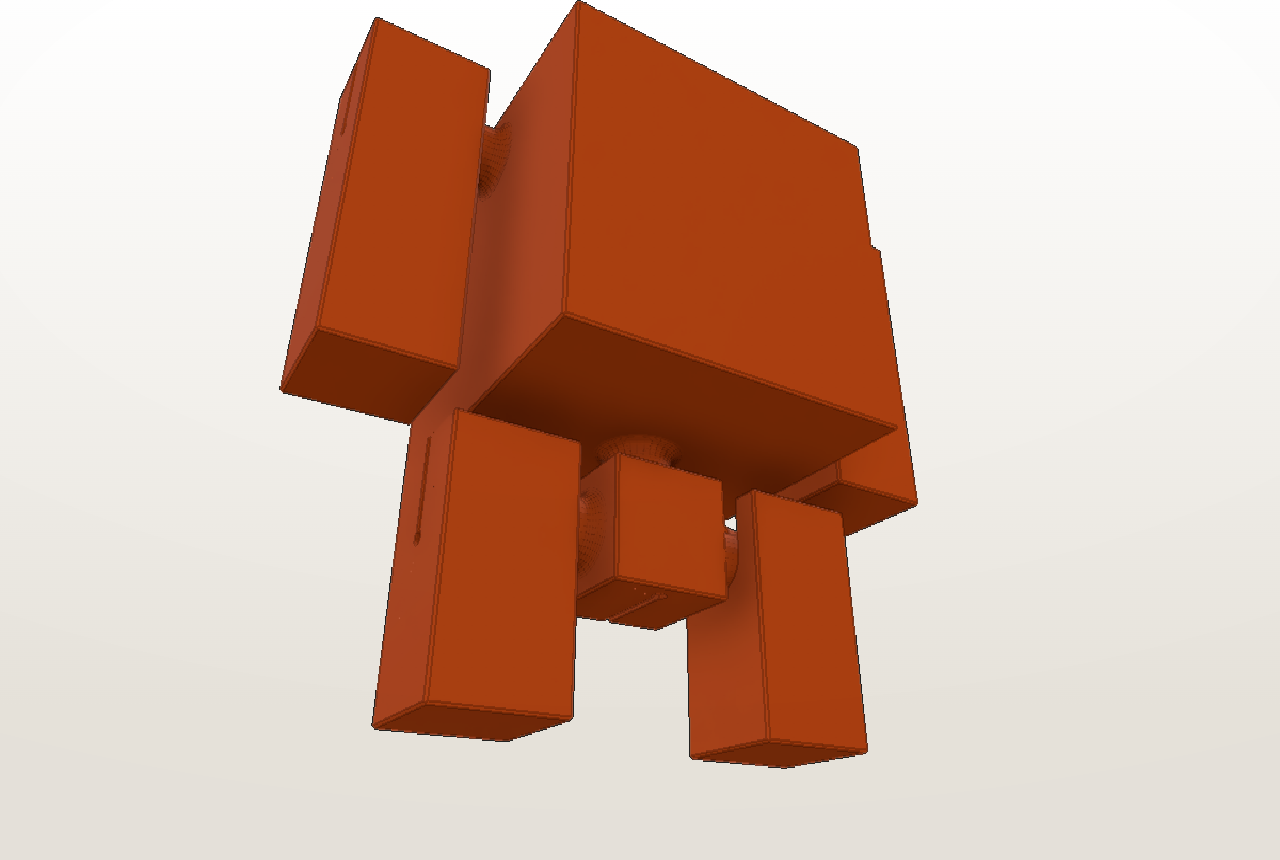
Before — the arm is a separate part (note the joint at the shoulder):
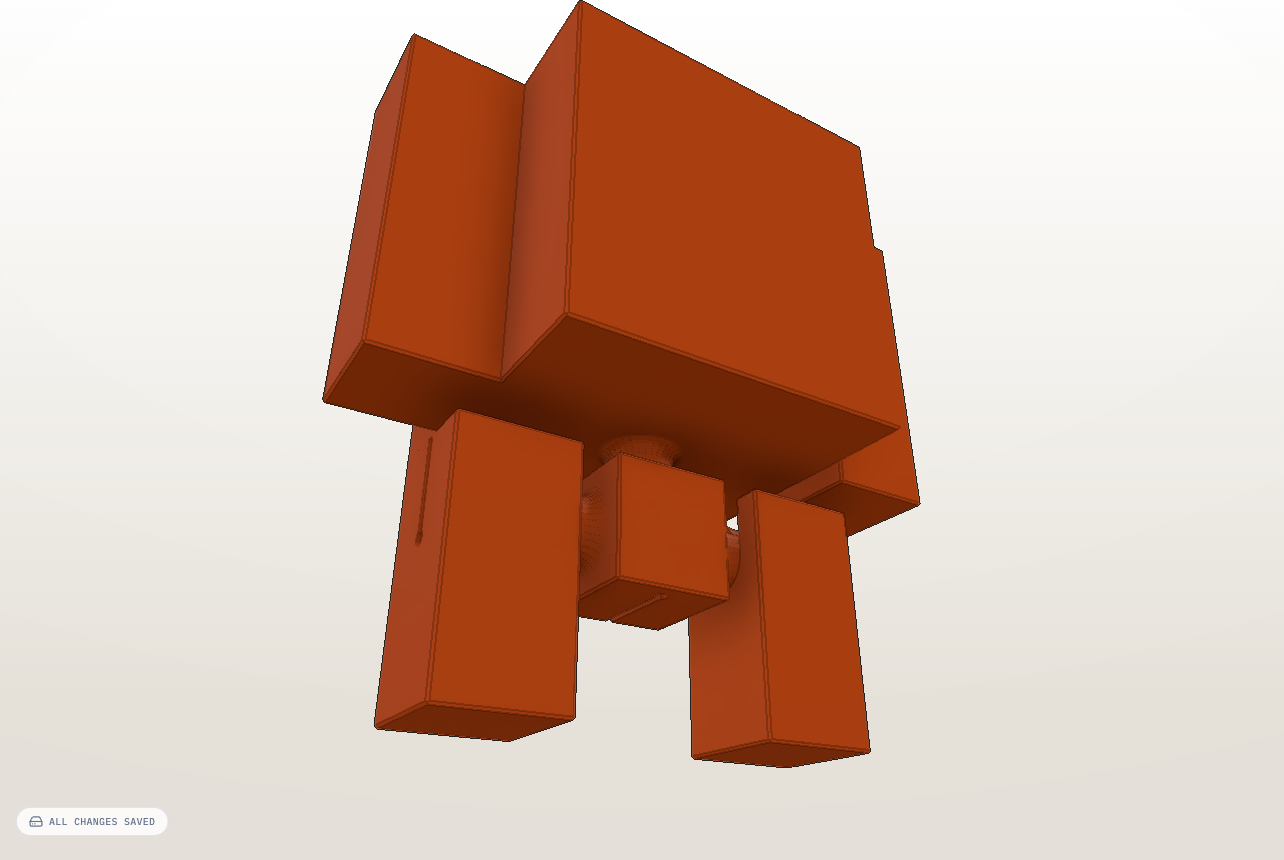
After — the arm is now part of the body:
Cut a Part (Scissors)
Split one part into two along a flat plane — the quickest way to add a joint.
- Select the part you want to cut.
- Hover over its surface — a cut-plane preview follows your cursor.
- Click to cut along that plane (or drag, then press Split).
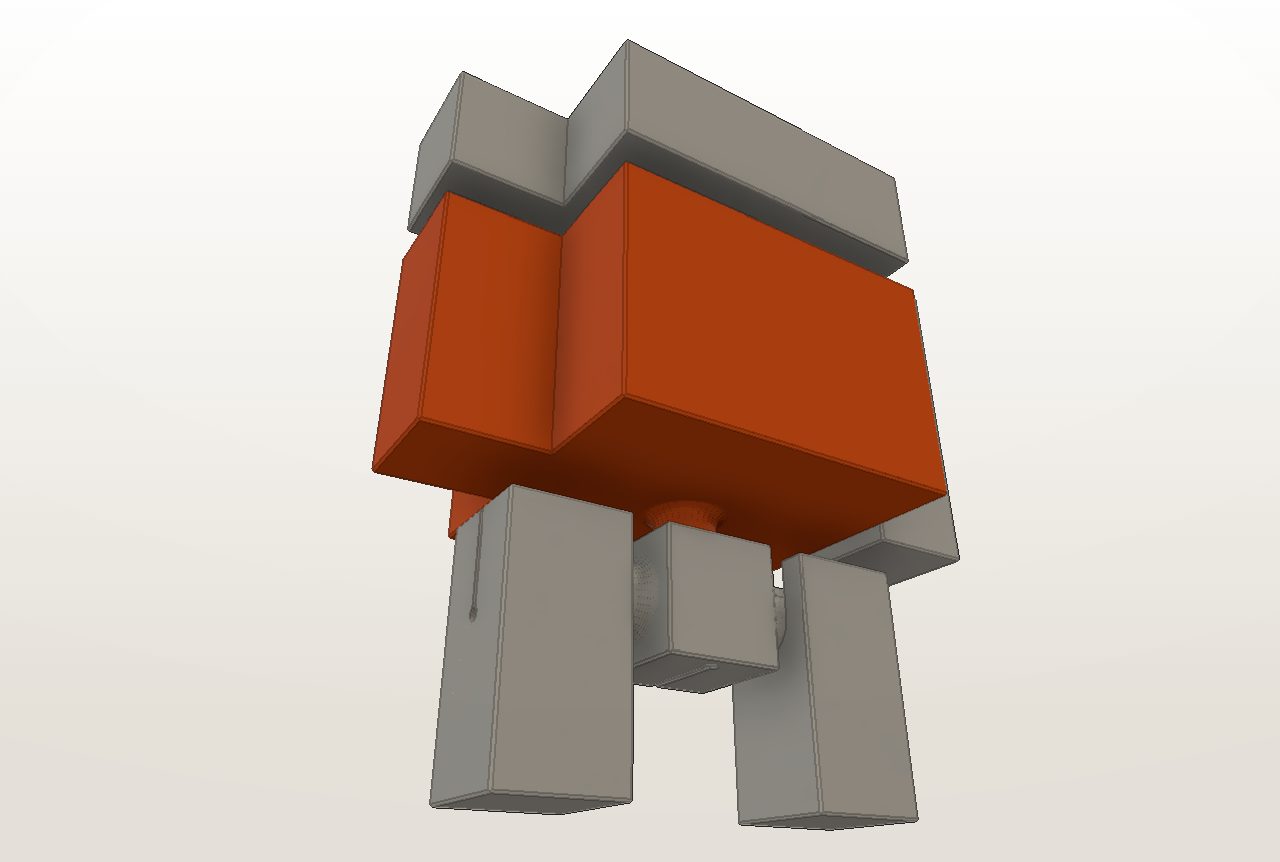
Cubie separates one side into a new part and places a joint at the cut, so the two pieces stay connected and move.
After cutting the body — the top is now a separate, movable part with a fresh joint:
Detaching Individual Voxels
Need an irregular split instead of a flat cut? Select the part, click the individual voxels you want to peel off, then press Detach — they become a new part with their own joint.
Tips
- Gap = movement: a cut leaves a small gap between parts — that clearance is what lets the joint move.
- Cut where you want it to bend: shoulders, knees, neck, waist.
- Undo:
Ctrl+Zreverses a cut or a merge.