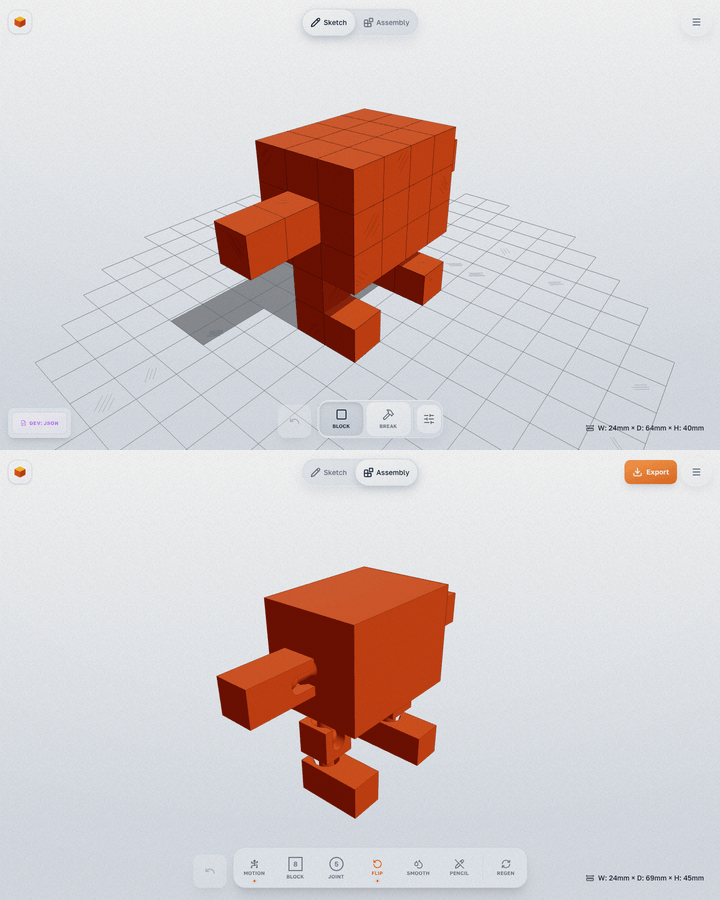
Joints & Connection Types
Cubie connects parts with print-friendly joints. Most click together after printing (snap-fit); some print already assembled. Every connection is a snap-fit ball joint by default — select a part to switch it to another type.
Choosing a Joint Type
Select a part in Assembly mode to change how it connects to its parent:
- Joint (default) — a ball-and-socket snap-fit. A slit lets the ball pop into the socket via elastic deformation, giving full 360° swivel and tilt. Best for heads, shoulders, tails, limbs — any free-moving connection.
- One-piece — a print-in-place capture joint. The ball is trapped inside the socket with a small gap, so the part prints already assembled — nothing to snap together — yet it still pivots. Great for kids and for tiny joints that are fiddly to assemble by hand.
- Spring — a springy ribbon that flexes and returns to center (tails, antennae, soft suspension). Print it welded into both parts (Part of body) or as a separate piece with snap-in pegs (Separate part), and tune its thickness and width.
- Tight — a rigid peg that holds a fixed pose instead of swinging freely. Pick a Round or Square peg. Best for poseable limbs you want to stay put.
How the Ball Joint Works
One part is the "parent", the other is the "child". The connection is built directly into the part geometry — no separate bones needed.
- Structure: Ball-and-socket joint carved directly into the voxel parts. A slit allows the ball to pass through via elastic deformation.
- Movement: 360° rotation (swivel and tilt).
- Best for: Heads, shoulders, tails, limbs — any connection point.
Auto-Generation
Joints are generated automatically when entering Assembly mode. Cubie analyzes contact surfaces between parts and places joints optimally.
Settings
- Bearing diameter: Auto-calculated based on cube size. Can be manually adjusted.
- Firmer fit: Increase interference (or choose the Firm preset at export) so a joint holds its pose instead of swinging freely.
- Joint role flip: Swaps ball ↔ socket roles for a specific joint.
- Reposition Joint: Moves the joint along the contact plane (physically relocates child voxels).
- Reposition Socket: Moves only the socket along the contact plane (geometry-only, no voxel movement).
Step-by-step Example (Robot)
Parts separated, joints auto-generated:
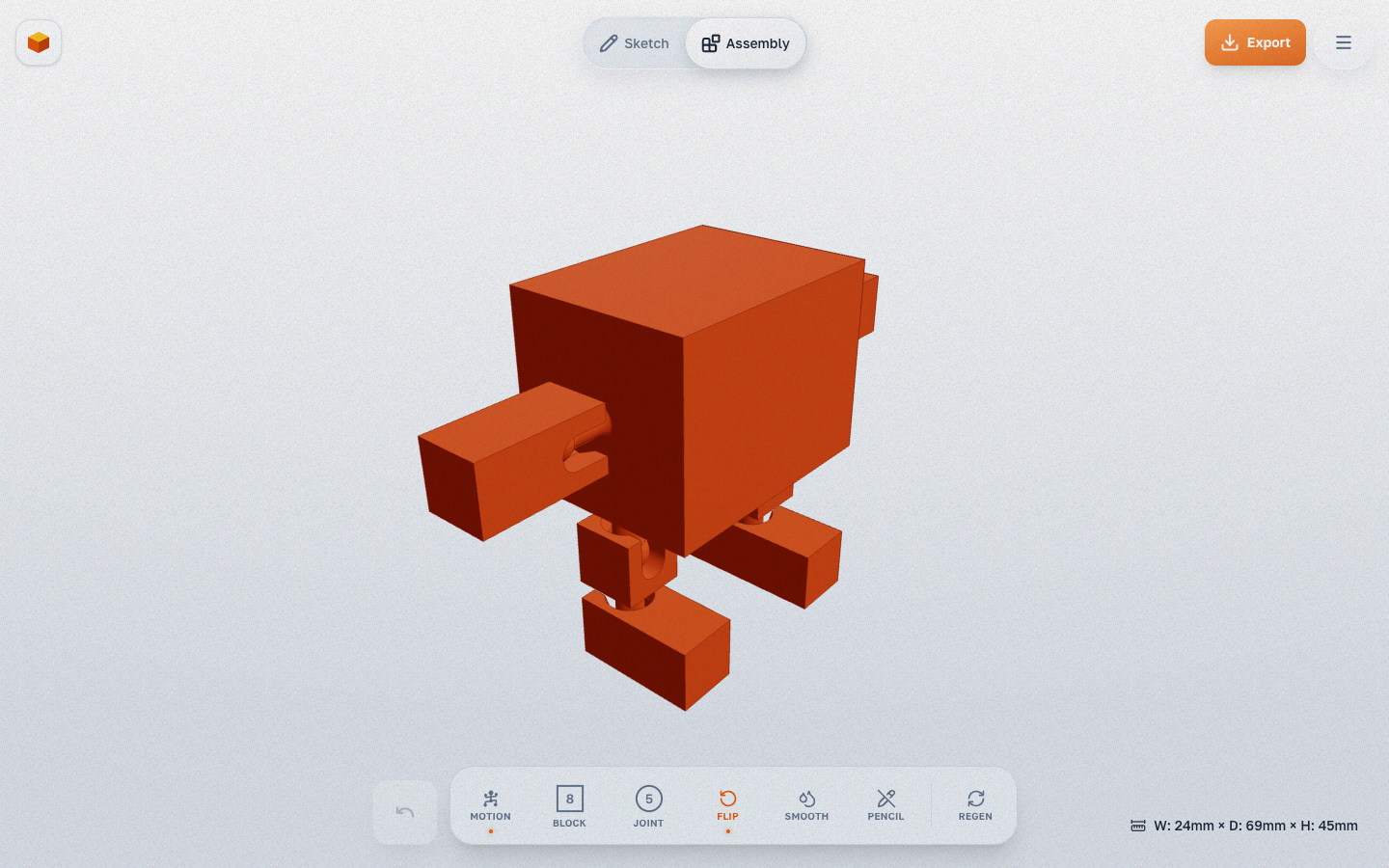
Short process animation: